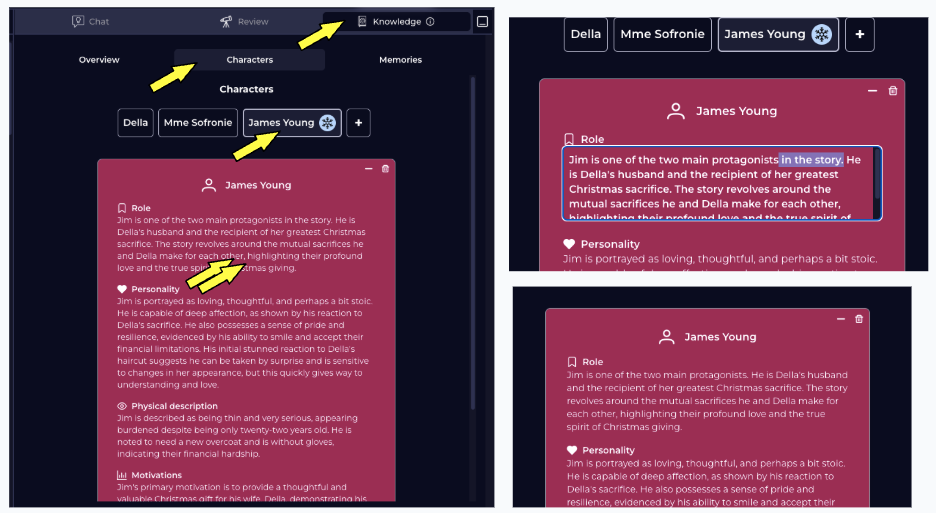

The Knowledge Base is designed to be a continuously updating repository of knowledge for your book. Currently we support the following types of data -Documentation Index
Fetch the complete documentation index at: https://quarkle.mintlify.app/llms.txt
Use this file to discover all available pages before exploring further.
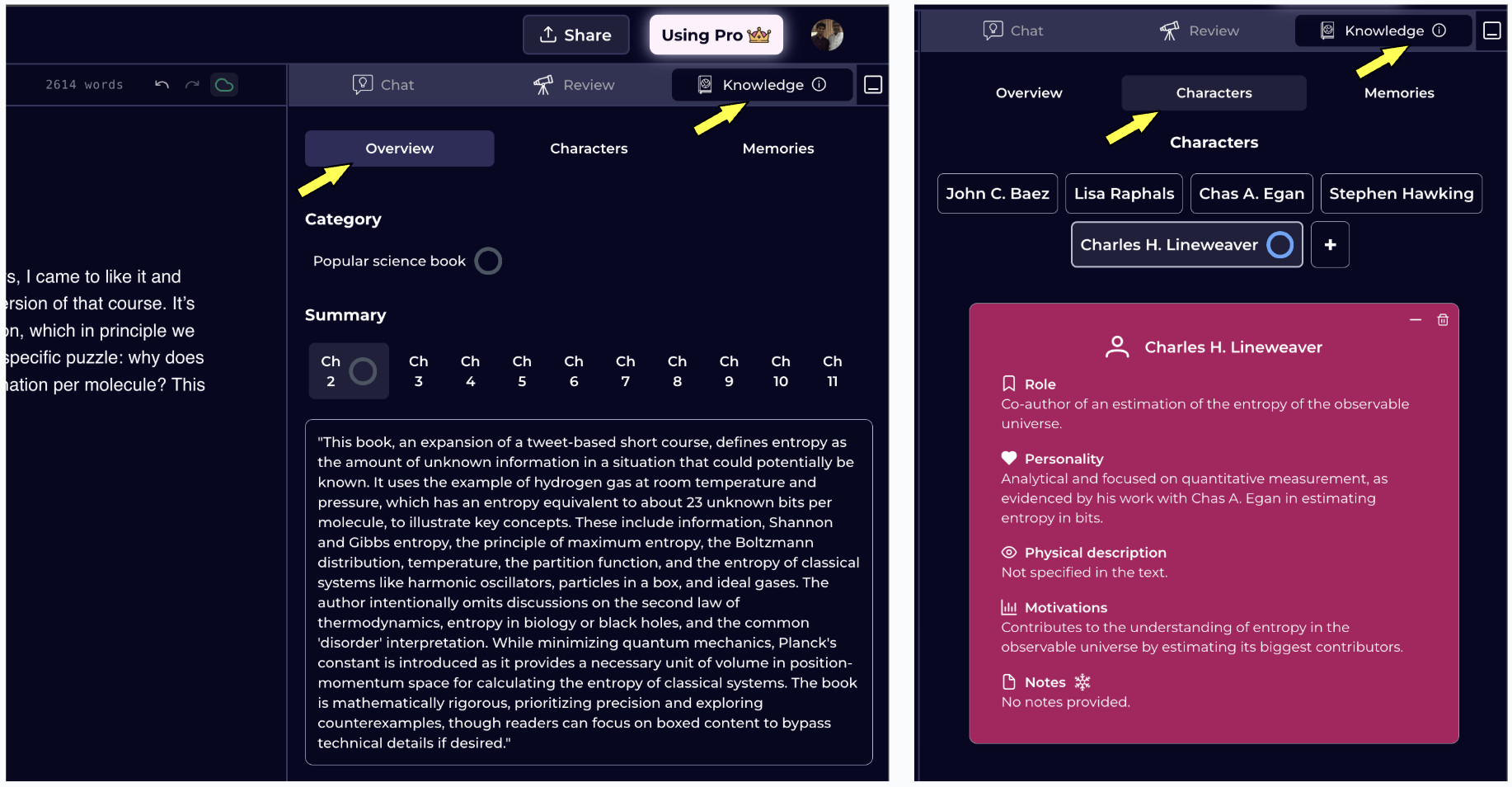
- Category - a simple categorization to help set the tone
- Chapter Summary - summaries for each chapter
- Character Profiles - list of all relevant characters and their profiles
Knowledge Base is only accessible to Quarkle Pro users
How to update Knowledge Base?
Here, we will familiarize you with the **auto-update icon. **A trigger is set for every couple 100 words to update different parts of the knowledge base as you’re typing. If at any point, you want to manually update an item, look for the circular ring next to a Knowledge item - eg, Category in the case below. Step 1 - Open Knowledge Tab in the Right Panel Step 2 - Look for the relevant Knowledge Item you want to update Step 3 - Look for the Circular Ring and hover over it Step 4 - Click on Update Now. You can also see how many words until the next update.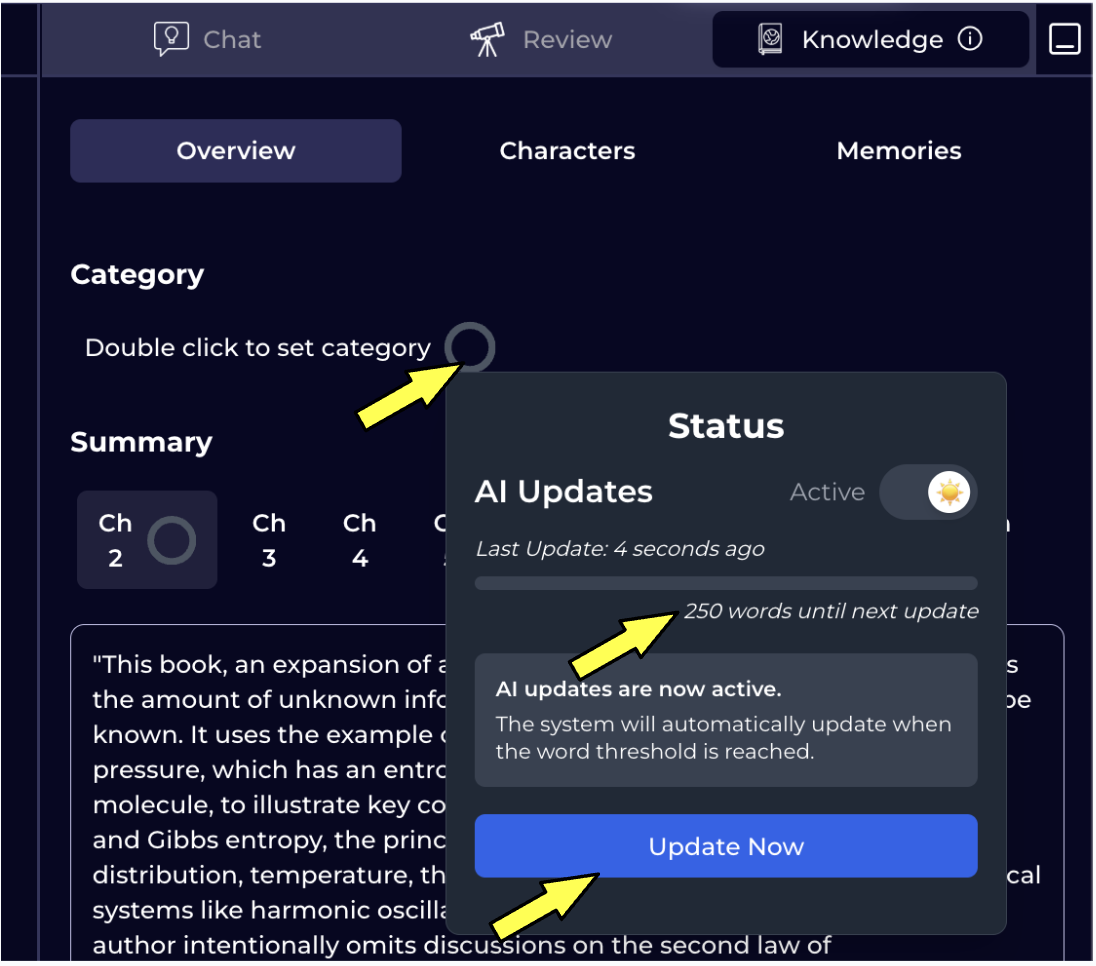
How to stop the Knowledge Base from auto-updates
Once you’re happy with the Knowledge Base content for a particular scene or character, you may opt to _freeze _that information so Quarkle does not override it again with its periodic updates. Step 1 - Open Knowledge Base in the Right Panel Step 2 - Look for the relevant knowledge item Step 3 - Look for the circular update ring and hover over it Step 4 - Turn off AI Updates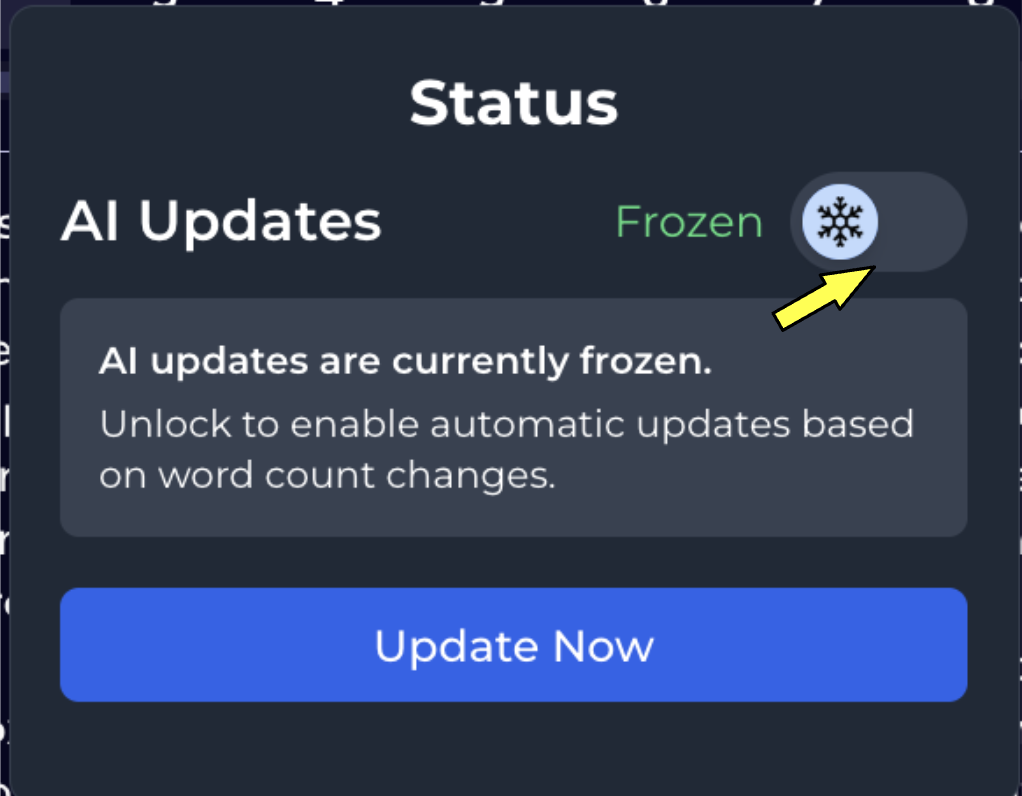
How to get Chapter Summary
Step 1 - Open Knowledge in Right Panel Step 2 - Select the Chapter that you want to summarize Step 3 - Hover over the Status Ring Step 4 - Click on Update Now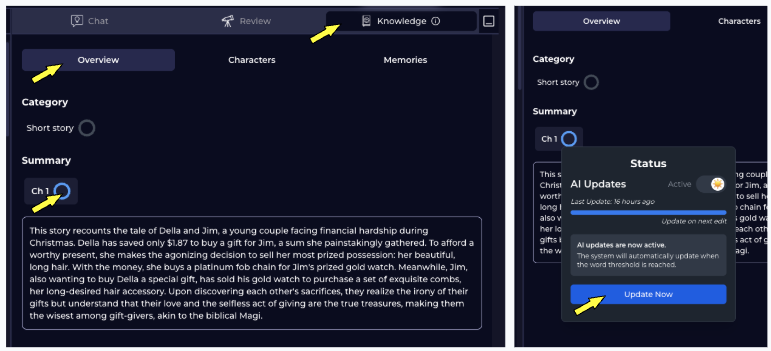
How to generate Character Profile
Quarkle regularly scans your text for new Characters for whom it would be useful to curate a profile. Step 1 - Open Knowledge in the Right Panel Step 2 - Click on Characters tab Step 3 - Click on+ to add a new character
Step 4 - Add their name and press Enter
Step 5 - Hover over the Status Circle and click on Update Now
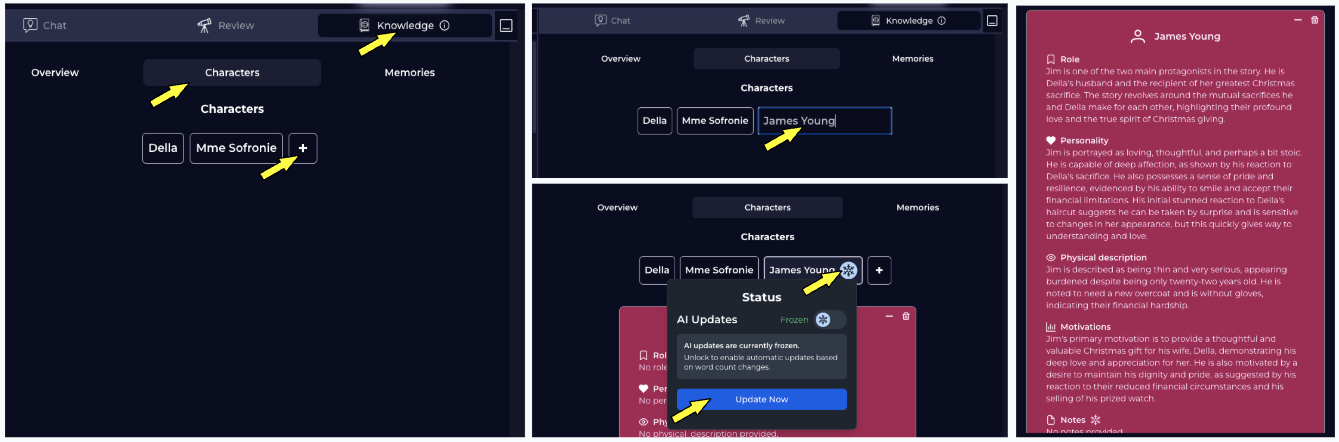
Manually update Character Profile
Step 1 - Open Knowledge tab in the Right Panel Step 2 - Open Characters tab in Knowledge Step 3 - Select the Character you want to update Step 4 - Double click on the attribute content you want to edit. You will now enter edit mode. Step 5 - Edit the profile as desired, and hitEnter