
The Chat is one of the most used features on Quarkle platform. Here, you can use the Chat to brainstorm ideas, get critiques, get line edits, and more. If you are a Pro user, you can also select which model you want to use.Documentation Index
Fetch the complete documentation index at: https://quarkle.mintlify.app/llms.txt
Use this file to discover all available pages before exploring further.
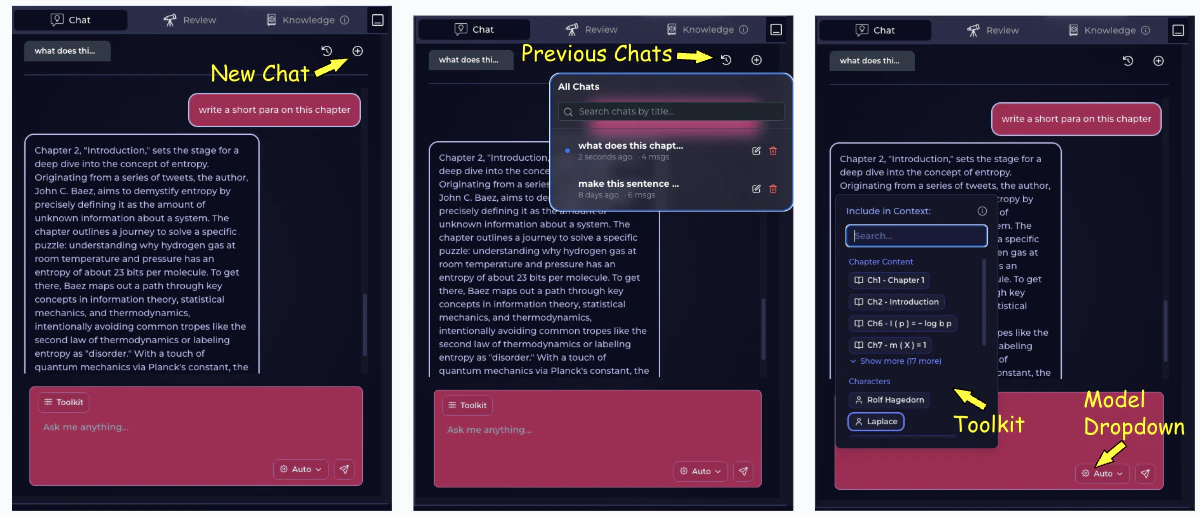
Start a new Chat
Step 1 - Open Chat in the Right Panel Step 2 - Look for the+ Icon which says “New Chat” when you hover
Step 3 - Click and wait for a new chat to open
Find Previous Chats
Step 1 - Open Chat in the Right Panel Step 2 - Look for Icon that says “Previous Chats” when you hover Step 3 - Select the desired chatChat Toolkit
Chat Toolkit is a really handy tool to get the most out of Quarkle’s chat. Here, you can select the context you want the Chat to refer, giving you full control over what the AI has access to.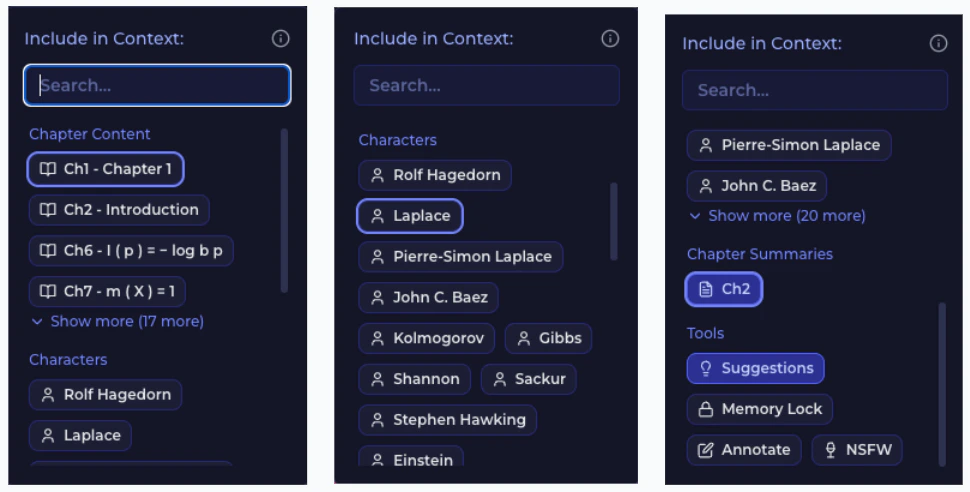
- Chapter Content - add chunks from the selected chapters.
- Characters - add character profiles for the selected characters.
- Chapter Summaries - condensed chapter summaries, so you can give the bigger picture to Quarkle.
- Annotate - get line-edits that appear as comments per line.
- Suggestions - get line-edits that appear as suggested text edits [add, delete, rewrite]
- NSFW - send your requests to an unfiltered LLM for your spicy scenes
- Memory Lock - do not update Memory — helpful when you want to brainstorm but don’t want Quarkle to remember
Annotations from Chat
Annotations help you with per-line commentary and re-writes that can give you directed feedback quickly. Step 1 - Open Chat in the Right Panel Step 2 - Select Annotate from the Toolkit Step 3 - Give instructions on the type of commentary you want Step 4 - Wait for results. They will appear in the Review Tab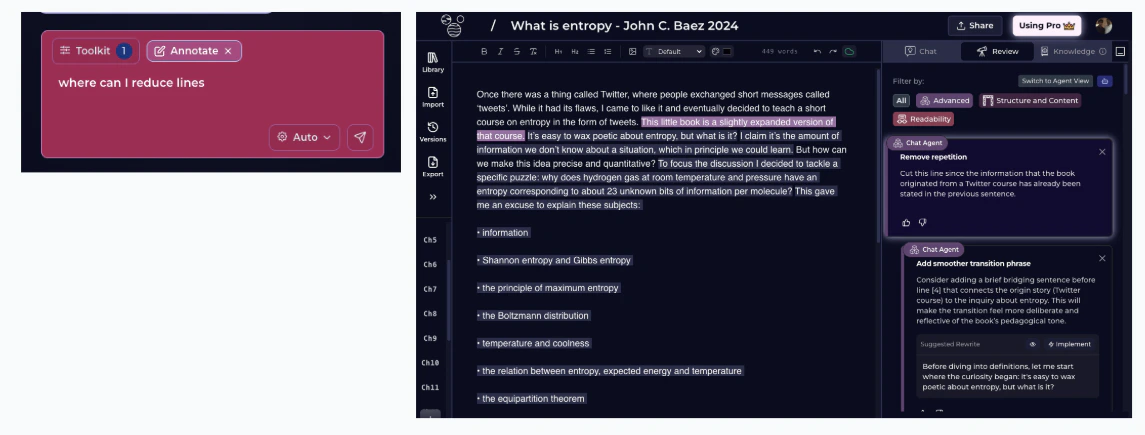
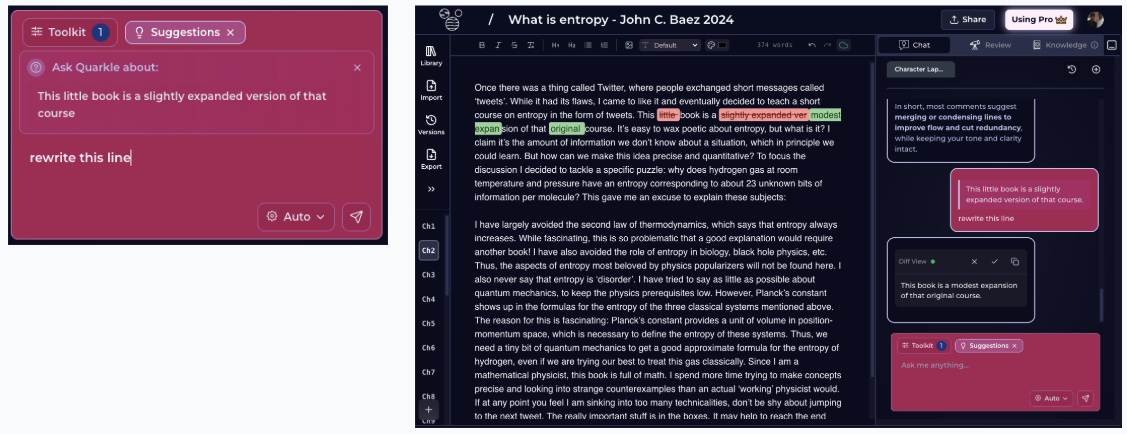
Suggestions from Chat
Suggestions are a way to get directed line-edits by simply chatting with Quarkle. Step 1 - Open Chat from the Right Panel Step 2 - Select Suggestions from the Toolkit Step 3 [optional but recommended] - Select the text that you are interested in. You can highlight the text and select Ask Quarkle Step 4 - Wait for Quarkle’s response Step 5 - View the suggested changes in the editor. Accept with Checkmark.